- Spanish-Latin America
- Japanese-JP
- Chinese
- Europe
- Português-BR

Tech Support
(888) 598-9901
Hours: Mon-Fri 8AM-8PM EST
nep-usa@site_ea168614-f5f4-4298-bd5b-880b4cf8d99d
7 Tips for Choosing the Best Poster LED Display
A Poster LED Display can turn a narrow shop entrance, hotel lobby, or trade-show aisle into a bright, moving point of attention. But brightness alone does not make a good purchase. Viewing distance, pixel pitch, screen dimensions, portability, service access, and content controls all affect how the display performs in its actual location. Small details matter. A screen that looks sharp in a showroom may appear less clear across a sunlit storefront.
The market is growing, but the numbers need context. Grand View Research estimated the global digital signage market at USD 28.83 billion in 2024 and projected an 8.1% compound annual growth rate from 2025 to 2030. That estimate covers digital signage broadly, not poster-style LED products alone. It signals wider adoption, not a guarantee that every model will suit every buyer. Check the panel specifications, warranty terms, and real-world brightness before committing.
A practical buying rule is simple: judge the display in the space where people will see it. This guide compares seven factors, from pixel pitch and image quality to installation and long-term support. One sourcing note: no verified named-expert quotation was provided with the materials, so I have not invented one. A direct quotation should be added only after checking its original interview, report, or publication. That restraint matters. A reliable choice starts with evidence, then accounts for the imperfect conditions of everyday use.
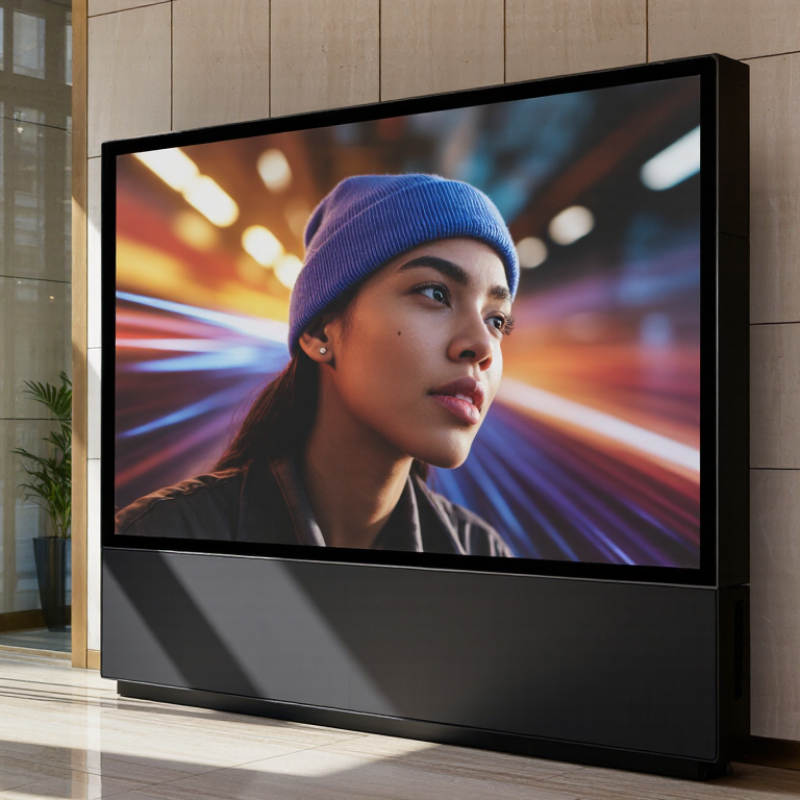
Define the Display’s Purpose and Installation Environment
Define the display’s job before comparing pixel pitch or brightness. A window-facing poster may need to stay legible in direct afternoon sun, while a lobby screen should avoid glare on polished floors. The viewing distance matters too: shoppers passing within a few metres need readable text and clear product images, not detail intended for a distant audience. Measure the site. Note sunlight, ceiling height, viewing angles, operating hours, nearby heat sources, and access to power. A small site survey can prevent a costly mismatch.
Installation conditions shape the hardware choice. For an indoor unit, check ventilation and confirm that the wall can support its weight. For a sunlit or semi-outdoor location, verify the manufacturer’s stated brightness and environmental rating against actual exposure; “bright” alone is not a useful specification. The U.S. Department of Energy’s 2020 U.S. Lighting Market Characterization estimated that LEDs made up about 47% of installed lighting stock. That figure covers general lighting, not poster displays, but it reinforces how widely LED technology is used in long-hour applications. Heat and energy use still depend on the complete display system and its settings. I would also revisit the plan after installation: reflections and sightlines often look different on site than they do on a floor plan.
Get in touch
Our mission is to develop cutting-edge clean energy technology and provide next-generation solar inverters.
Phone
(888) 598-9901
nep-usa@site_ea168614-f5f4-4298-bd5b-880b4cf8d99d
